Music Production Tools 2026: The Essential Producer Stack
Fact-checked July 19, 2026. Product links in this guide lead to official developer websites. CreoStack did not receive payment to include these tools.
The best music production tools are not necessarily the newest or most expensive. A producer with a stable DAW, good headphones, and five familiar plugins will usually finish more music than someone constantly installing new software. This guide builds a practical stack for recording, beat making, sound design, collaboration, mixing, and release preparation.
Music production tools for 2026 at a glance
| Need | Strong starting options | Upgrade when |
|---|---|---|
| DAW | Ableton Live, FL Studio, Logic Pro, or REAPER | Your current DAW blocks a workflow you use every week |
| Synth | Vital Basic or Surge XT | You need specific factory sounds, support, or a specialized engine |
| EQ | TDR Nova | You need a faster advanced workflow or extra bands and features |
| Creative space | Valhalla Supermassive | You need a particular room, plate, or post-production reverb |
| Samples | Your own recordings or a curated library | Searching consumes more time than creating |
| AI assistance | Moises for stems and practice-oriented tools | Usage limits or export requirements affect real projects |
| Mastering | Your DAW’s meters and processors | You understand the problem a dedicated suite will solve |
1. Choose one DAW as the center of your studio
Your digital audio workstation is where projects are recorded, arranged, edited, mixed, and exported. Switching DAWs every few weeks slows down muscle memory, so choose around your actual work.
Ableton Live: electronic production and performance
Ableton Live combines a traditional Arrangement View with Session View for launching and combining musical ideas. Warping makes it especially useful for changing the timing and tempo of audio. Ableton’s official release notes list Live 12.4.3 as the current release on July 14, 2026, demonstrating that Live 12 is still receiving active fixes and workflow improvements.
Best for: electronic music, loop-based composition, sampling, and live performance. Consider something else if: you mainly record long multitrack sessions and prefer a conventional console-style workflow.
FL Studio: beat making and piano-roll sequencing
FL Studio is a strong choice for pattern-based production, fast MIDI editing, and detailed piano-roll work. Edition differences matter: Image-Line’s official comparison says Producer Edition adds full Playlist functionality, audio recording, Automation Clips, and tools not fully available in Fruity Edition. Check the exact edition before buying rather than assuming every installed plugin is licensed.
Best for: beat makers, electronic producers, and composers who work heavily with MIDI. Watch for: trial plugins inside a project; Image-Line warns that unlicensed trial plugin settings can be lost when a saved project is reopened and resaved.
Logic Pro: the Apple ecosystem
Logic Pro offers recording, instruments, effects, mixing, and scoring in one Apple-focused environment. Apple’s current technical specifications list macOS 14.4 or later and Audio Unit plugin support. Logic projects can also move between compatible Mac and iPad versions, although third-party plugins need compatible versions on both devices.
Best for: Mac users who want a broad built-in sound library and integrated recording workflow. Watch for: the cost of changing computer platforms later and plugin compatibility between Mac and iPad.
REAPER: flexible recording and editing
REAPER runs on Windows, macOS, and Linux and supports recording, editing, mixing, mastering, MIDI, and extensive customization. The developer offers a full 60-day evaluation, but REAPER is not freeware; buy a license if you continue using it.
Best for: recording, editing, customization, and efficient systems. Watch for: a less guided starting experience if you want a large bundled instrument collection.
Still choosing? Read CreoStack’s beginner DAW comparison before committing your projects to a platform.
2. Build a small instrument and sample library
A huge plugin folder does not create a recognizable sound. Start with one flexible synthesizer, a dependable drum source, and a tightly organized sample folder.
Vital Basic and Surge XT
Vital Basic is a free tier of the visual wavetable synthesizer and includes the full synth with a smaller preset and wavetable library. Surge XT is an open-source hybrid synthesizer with deeper sound-design possibilities. Vital is approachable when visual modulation helps you learn; Surge XT is excellent when you want a broad, expandable synthesis environment.
Splice Bridge for in-context sample preview
Splice Bridge connects the Splice desktop app to compatible DAWs so subscribers can preview samples against the project’s tempo and key. It can reduce bad downloads because you hear a sample in context before using a credit. It is included with Splice Sounds plans, so it is not a stand-alone free sample library.
If subscriptions distract you, record your own percussion, resample old sessions, and keep a folder with only your best sounds. Use descriptive filenames containing instrument, key, tempo, and source.
For more no-cost options, see CreoStack’s verified free VST guide.
3. Use a minimal mixing toolkit
A complete mix does not require fifty processors. Your DAW’s stock EQ, compressor, saturation, delay, reverb, limiter, and meters can handle most work. Add third-party plugins for workflow or character, not because a list calls them essential.
TDR Nova for dynamic EQ
TDR Nova is a free parallel dynamic equalizer. It can act as a normal parametric EQ or respond dynamically when harshness, sibilance, or a resonant note crosses a threshold. Begin with a static move and add dynamics only when the problem changes over time.
Valhalla Supermassive for creative reverb and delay
Valhalla Supermassive is a free reverb-and-delay plugin designed for echoes, long spaces, and evolving ambience. Put it on a send and automate the return to prevent huge tails from masking the next section.
Ozone 12 as a paid mastering option
iZotope Ozone 12 Advanced is a paid mastering suite containing 20 plugins and an AI-powered assistant, according to iZotope. The assistant can provide a starting perspective, but it cannot decide the artistic goal or fix an unbalanced arrangement. Always compare at matched loudness and keep an unprocessed reference.
4. AI tools that support—not replace—the producer
The useful 2026 trend is not a button that “makes a hit.” It is targeted assistance: stem separation, timing and pitch analysis, noise repair, alternate arrangement ideas, and faster starting points.
Moises for stems and context-aware ideas
Moises offers stem separation, key and chord detection, pitch and tempo tools, mastering, and DAW-related workflows. Its newer AI Studio can generate context-aware instrumental stems that respond to an existing musical idea.
Use stem separation to study arrangements, prepare legitimate remixes, clean your own recordings, or make practice versions. Before sampling, redistributing, or releasing separated material, confirm that you own the recording or have permission. Technical access does not create copyright permission.
A practical rule for generative music tools
- Keep dated exports of your own prompts, recordings, edits, and project files.
- Read the service’s current license and privacy terms before uploading unreleased client work.
- Do not imitate a living artist’s identity or voice without permission.
- Treat generated material as a draft that needs arrangement, performance, sound design, and human judgment.
- Disclose AI involvement when a platform, client, collaborator, or contract requires it.
5. Hardware that matters more than another plugin
Audio interface
An interface converts microphone and instrument signals into digital audio and sends playback to headphones or monitors. Choose enough inputs for what you actually record, stable drivers for your operating system, direct monitoring if latency matters, and the correct connections for your computer and speakers.
Headphones and monitors
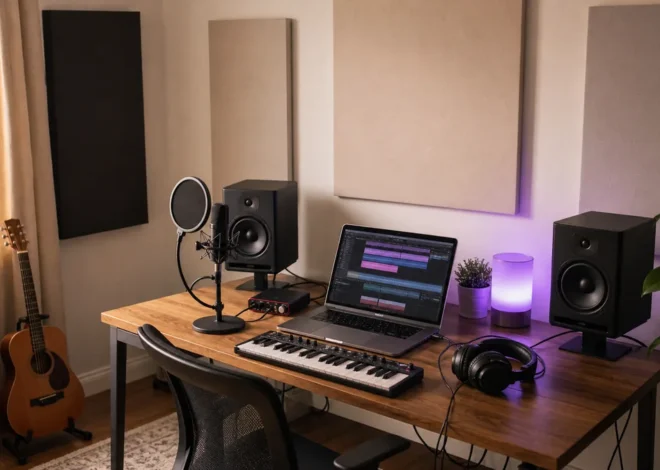
Accurate monitoring is about familiarity and consistency. If the room is untreated, dependable closed-back headphones for recording plus familiar open-back headphones for mixing may be more useful than placing expensive monitors in a reflective bedroom. Check mixes on several ordinary systems at moderate volume.
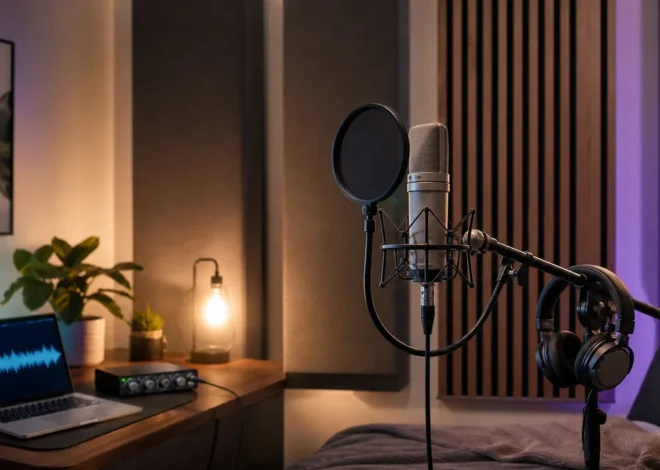
Microphone and room treatment
A modest microphone in a quiet, controlled space can outperform a premium microphone surrounded by hard reflections and background noise. Start with placement, soft furnishings, safe levels, and repeatable recording distance before buying extra processors.
MIDI controller
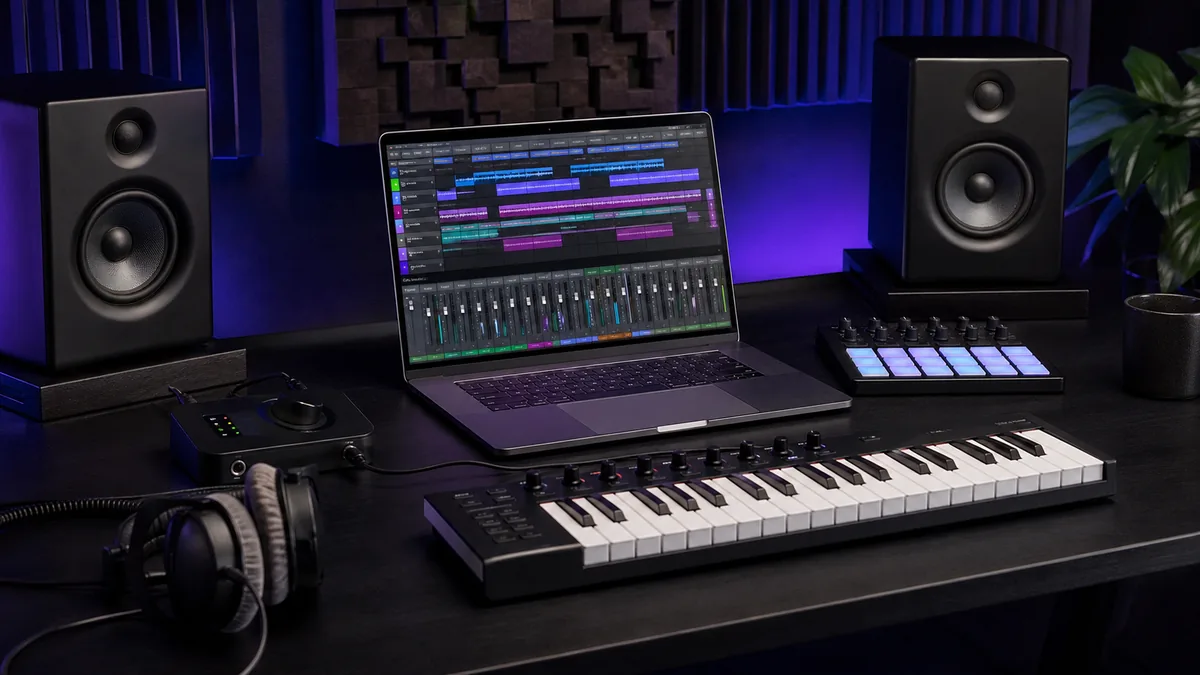
A controller should remove friction. Buy the number of keys and controls you will use, confirm compatibility with your DAW, and prioritize playable velocity response over a long list of bundled software.
Three sensible production setups
Minimal software expansion
- DAW you already own or are legitimately evaluating
- Vital Basic or Surge XT
- TDR Nova
- Valhalla Supermassive
- Organized local sample folder and two backups
Independent artist recording setup
- DAW with dependable vocal comping and editing
- Two-input audio interface
- Microphone appropriate for the room and voice
- Closed-back headphones and a stable stand
- Basic acoustic control and an external backup drive
Electronic producer and collaborator setup
- Ableton Live, FL Studio, Logic Pro, or another familiar DAW
- Compact MIDI keyboard or pad controller
- One main synth and one curated sample source
- Versioned project folders and cloud or off-site backup
- Moises or another targeted AI tool only when it saves a repeatable step
Workflow checklist before buying anything
- Write down the exact task slowing you down.
- Check whether your DAW already includes a tool for it.
- Test one option in a duplicate project, not an important master session.
- Confirm operating-system, processor, and plugin-format compatibility.
- Read the license for commercial work, samples, generated content, and client uploads.
- Export stems before major updates so old projects remain recoverable.
- Remove tools you do not use after a month and keep installers for the tools you do.
Frequently asked questions
What is the most important music production tool?
Your DAW is the center of the workflow, but monitoring and a reliable backup system have more impact than an additional synth or effect once the basic software is covered.
Do I need paid plugins to make professional music?
No. Stock and free tools can produce release-ready work. Paid plugins make sense when they provide a sound, compatibility, support level, or speed improvement you can identify clearly.
Should beginners use AI mastering?
It can create a reference starting point, but beginners should still learn headroom, tonal balance, dynamics, limiting, and loudness matching. Never approve a master only because an assistant labels it complete.
How many plugins should I install?
Install the smallest set that covers instruments, corrective processing, dynamics, ambience, and metering. Learn each one in real projects before adding another.
Final recommendation
Build the 2026 studio around one familiar DAW, trustworthy monitoring, safe backups, and a short plugin list. Use AI for defined tasks such as stem separation or a mastering comparison—not as a substitute for authorship and critical listening. Upgrade only after the same limitation appears across several projects. That approach saves money, reduces technical problems, and leaves more attention for finishing music.